
Photo to Sketch
Go from photo to sketch in pencil, charcoal, colored pencil or ballpoint pen, with the shading you choose. Your first image is free, no sign-up.
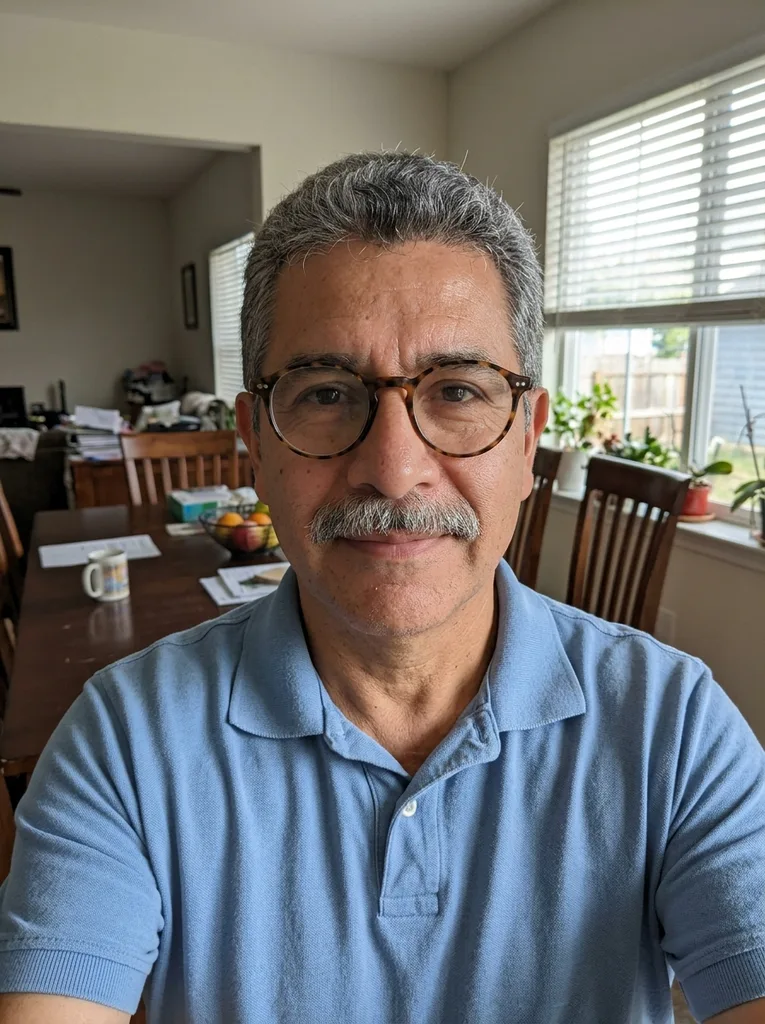 Before
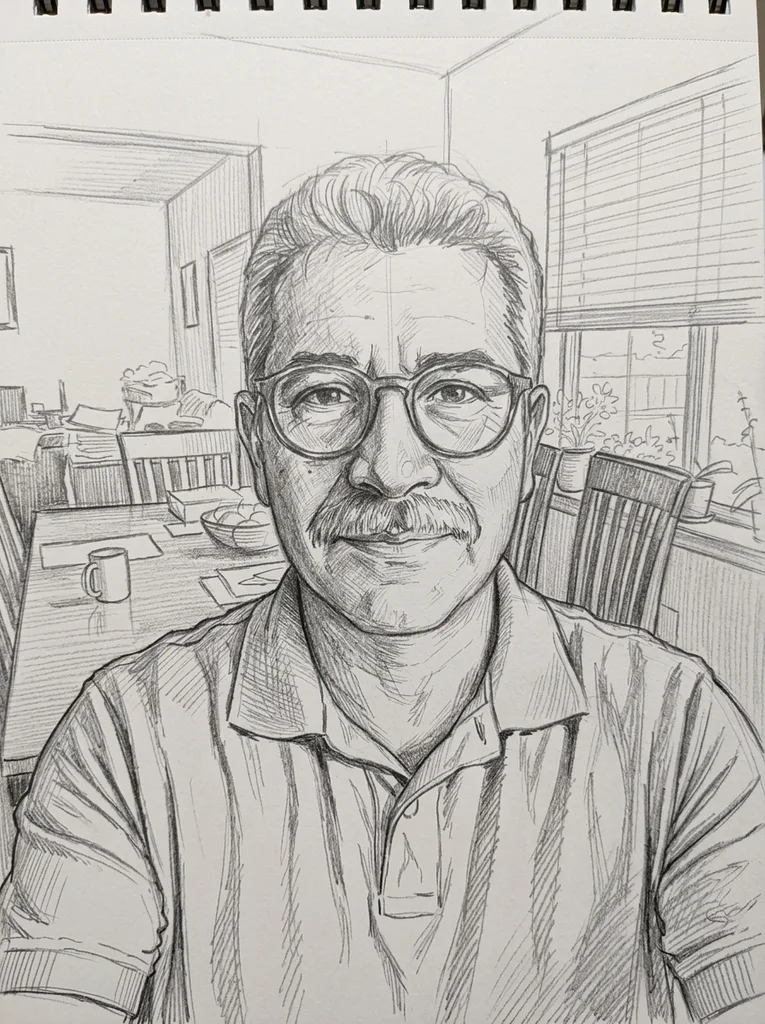 After
Example result. Upload your photo to make yours.
Examples
BeforeAfter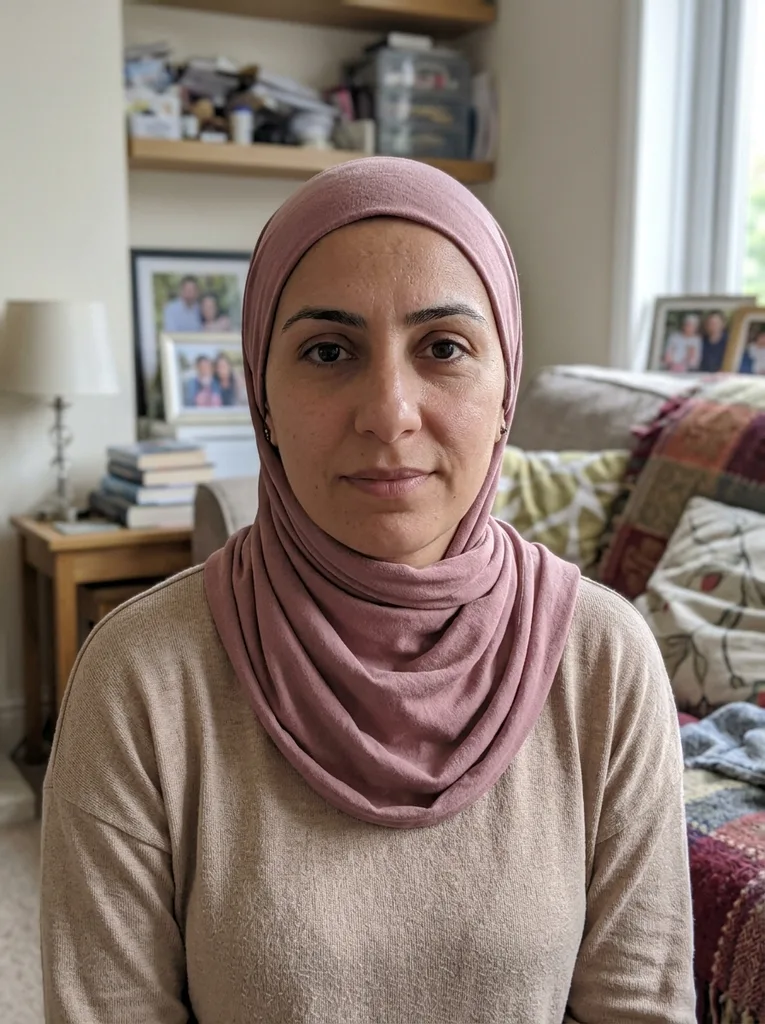 Before
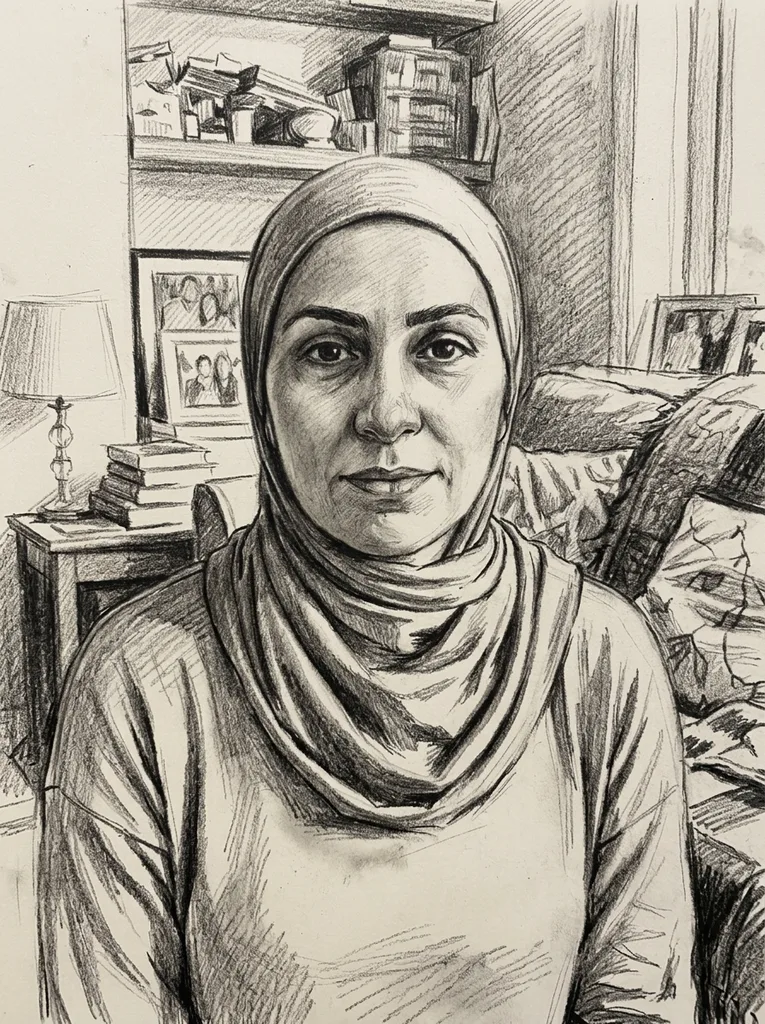 After
Pick the Sketch Tool and the Shading, Not Just a Filter
Two rows of buttons decide your photo to sketch result: what it is drawn with, and how much of the paper gets shaded.
Pencil on sketchbook paper
The default. The model is told to draw in graphite on white sketchbook paper, with visible strokes in soft grays. It is the safest pick for faces, because gray pencil keeps small details readable.
Charcoal on off-white paper
Charcoal asks for rich dark strokes and smudged shading on warmer, off-white paper. Pair it with Heavy shading for a moody portrait or a dramatic street scene.
Colored pencil and ballpoint pen
Colored Pencil lays loose strokes of color over a pencil underdrawing, so the sketch keeps a hint of your photo's colors. Ballpoint Pen draws in blue on lined notebook paper, like a doodle from the back of a school notebook.
Three shading levels
Light keeps mostly outlines with a few quick hatching strokes in the darkest areas and lots of white paper. Medium, the default, adds hatching and cross-hatching to model light and shadow. Heavy goes for full tones from bright highlights to deep darks, like a finished study.
Drawn strokes, not an edge filter
The model is asked for natural stroke direction, construction lines and slight imperfections, and is told the result should not look like a photo with an edge filter. That is the main difference from a one-click photo to sketch effect.
Your framing, your first image free
The model is told to keep every person, pet and object where it is, and the sketch follows your photo's shape. Your first image is free across the whole site, with no sign-up, so pick the tool and shading you want most.
How to Turn a Photo into a Sketch
One photo, two choices and an optional note make up the whole photo to sketch flow.
- 1
Upload one photo
Click the upload box or drag a picture in: JPG, PNG, WebP or HEIC, up to 10 MB. Your browser converts HEIC to JPEG and scales large photos down before upload, so phone pictures work as they are.
- 2
Choose a sketch tool and shading
Pick Pencil, Charcoal, Colored Pencil or Ballpoint Pen, then Light, Medium or Heavy shading. Add a short note if you want something changed, such as only sketching the person on a plain background.
- 3
Generate, check and download
The sketch appears next to the panel that holds your photo, so you can compare the two. Press Download to save it, because the result is gone once you refresh or leave the page.
AI Image to Sketch Converter vs Filters and Photoshop
Four common ways to go from photo to sketch, and what each one asks of you.
| This AI sketch maker | One-click sketch filter | Photoshop dodge and blur | Drawing it by hand | |
|---|---|---|---|---|
| How the sketch is made | An image model redraws the photo with strokes | Edges are traced and a sketch texture is added | Desaturate, invert, Color Dodge, Gaussian Blur | You draw it, line by line |
| Skill needed | None | None | Layers and blend modes | Drawing practice |
| Looks like | A drawing with hatching and construction lines | Your photo with a sketch effect | A soft graphite look over the photo | Your own hand |
| Control | 4 tools, 3 shading levels, a 300-character note | Style presets, some with sliders | Full control over lines and tone | Full control |
| Matches the photo | Told to keep the framing; compare it yourself | Follows the photo pixel for pixel | Follows the photo pixel for pixel | As close as you can draw |
| Cost | One free image per visitor, no sign-up | Free to subscription, typically | A paid photo editor | Paper and pencils |